Tuesday, January 20, 2015

Redacted font on Android emulator

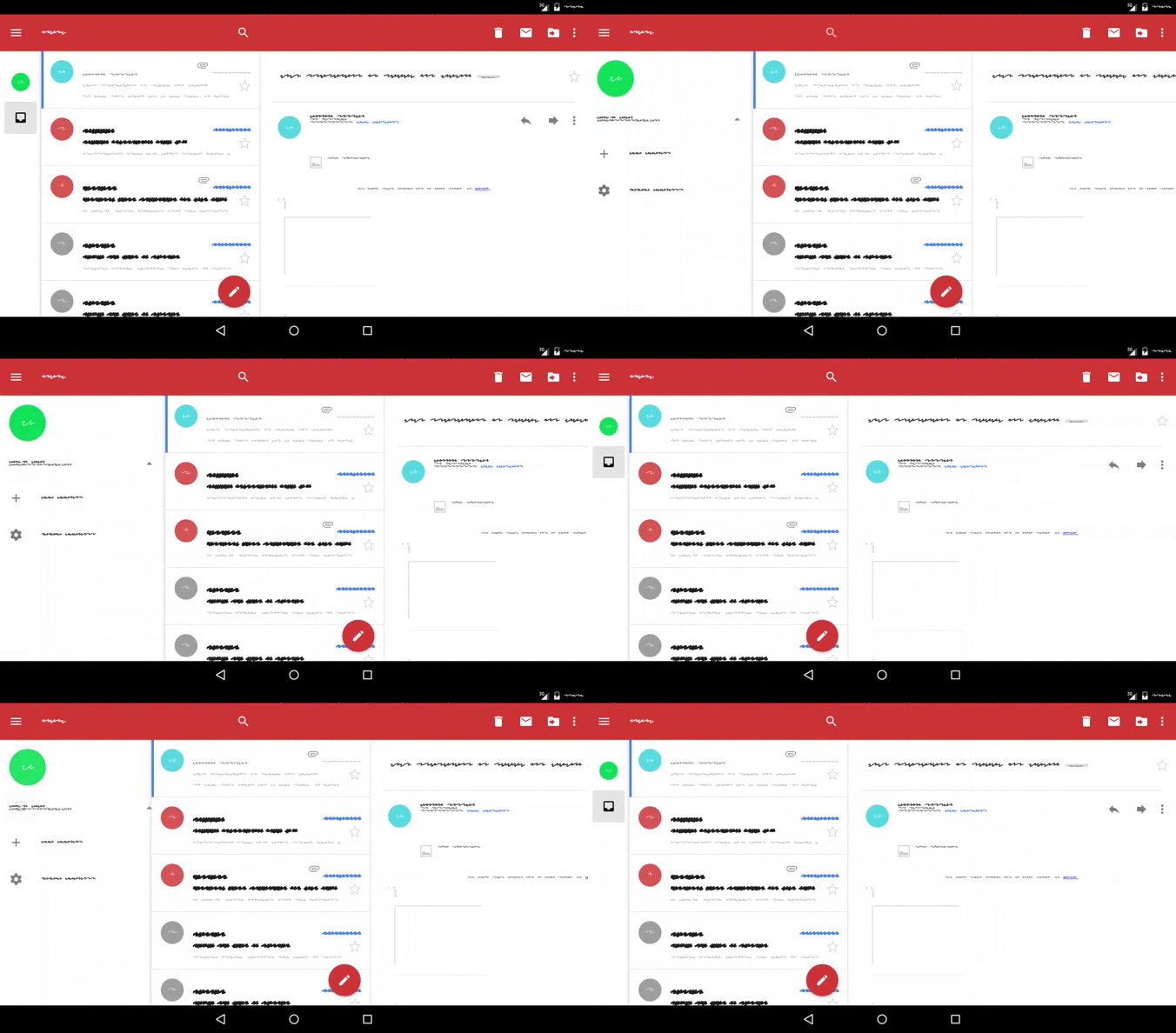
I wanted to show the Gmail app in my partial SlidingPaneLayout article. However, I do not want to show my actual emails. Normally I would just blur out the sensitive data, but I want to show the cross-fade animation in a video, so that doesn't really work.

The easy way to get around this is to create a throw-away email account and show the fake data, but I came up with something more fun: replace the system font to show squiggly lines instead of words! I will be using Redacted, a beautiful squiggly font. I don't want to muck with my actual device, so I went with modifying an emulator.

yaff2 vs ext4

At first I followed this tutorial: How to pack and unpack system.img and userdata.img from an Android factory image.

The first step should be a giveaway that it may not work:

git clone https://android.googlesource.com/platform/system/extras
cd extras
git checkout android-4.1.1_r1

The tools described in the tutorial has been removed in the recent releases, so you have to check out an older tag.

In any case, I proceeded to mount system.img, replace Roboto-Regular.ttf with redacted-script-regular.ttf, and repackage the image with make_ext4fs. To compile make_ext4fs I needed to checkout platforms/system/core as well, and add its includes:

gcc -o make_ext4fs -I../../core/include -DANDROID \
  make_ext4fs_main.c make_ext4fs.c ext4fixup.c \
  ext4_utils.c allocate.c backed_block.c output_file.c \
  contents.c extent.c indirect.c uuid.c sha1.c \
  sparse_crc32.c wipe.c -lz

Next I created a new AVD, and copied the modified system.img into its folder. Alas, it did not work.

ko:Invalid cache partition image type: ext4 (expected yaffs2)

Turns out the Android 5.0 filesystem its in ext4, but the tutorial produces a yaff2 image.

Mount and sync

This tutorial has steps to make an ext4 image: How to create EXT4 images

But instead of creating a new image, I modified a copy of system.img like this:

cp ${ANDROID_HOME}/system-images/android-21/google_apis/\
armeabi-v7a/system.img .
mkdir my_system
sudo mount -t ext4 -o loop system.img my_system
cp redacted-script-regular.ttf my_system/fonts/Roboto-Regular.ttf
sync

I copied the modified system.img into the AVD folder and booted. Yes, squiggly!

Squiggly

However I had two problems:

  1. How do I add a Gmail account in squiggly?
  2. Some strings were in squiggly but others were still in English

To solve the first problem, I moved the modified system.img out of the AVD folder and rebooted the emulator to configure Gmail in English. This works because the changes are stored in user data, which will not be overridden when I swap back in the modified system.img.

To solve the second problem, I overwrote more fonts.

Roboto-BlackItalic.ttf
Roboto-Black.ttf
Roboto-BoldItalic.ttf
Roboto-Bold.ttf
Roboto-Italic.ttf
Roboto-LightItalic.ttf
Roboto-Light.ttf
Roboto-MediumItalic.ttf
Roboto-Medium.ttf
Roboto-Regular.ttf
Roboto-ThinItalic.ttf
Roboto-Thin.ttf

Everything with Black or Bold got redacted-script-bold.ttf. Everything with Light or Thin got redacted-script-light.ttf. The rest got redacted-script-regular.ttf.

Ubuntu

In case you are wondering, I did everything on my ubuntu machine. To record the video, I used SimpleScreenRecord. I chose "Select window..." to pick the emulator window, and adjusted top and height to crop out the window title. The height is the height of my emulated device, and I add the delta from height to top to compensate.

With all that, I have Gmail in squiggly, recorded to share!
Monday, January 19, 2015

Partial SlidingPaneLayout

Gmail has an interesting UI on tablet:

The side pane is always visible, showing icons when collapsed, cross fading to more details when expanded. How is it implemented?

My first observation is that the main pane slides when the side pane expands, so I know it is not a NavigationDrawer. Let's try a SlidingPaneLayout.

SlidingPaneLayout

<android.support.v4.widget.SlidingPaneLayout
    xmlns:android="http://schemas.android.com/apk/res/android"
    android:id="@+id/sliding_pane_layout"
    android:layout_width="match_parent"
    android:layout_height="match_parent">
  <TextView
      android:layout_width="240dp"
      android:layout_height="match_parent"
      android:background="@color/blue"
      android:text="@string/pane_1"/>
  <TextView
      android:layout_width="400dp"
      android:layout_height="match_parent"
      android:layout_weight="1"
      android:background="@color/light_blue"
      android:text="@string/pane_2"/>
</android.support.v4.widget.SlidingPaneLayout>

Looks good, except the main pane turns gray. Fortunately we can change the fade color to transparent.

SlidingPaneLayout layout = (SlidingPaneLayout) 
    findViewById(R.id.sliding_pane_layout);
layout.setSliderFadeColor(Color.TRANSPARENT);

Partial side pane

Now I want to make the side pane partially visible when collapsed. Took me a while (plus a shower) to figure that out, but once I did it was really simple: add margin to the main pane.

<android.support.v4.widget.SlidingPaneLayout
    xmlns:android="http://schemas.android.com/apk/res/android"
    android:id="@+id/sliding_pane_layout"
    android:layout_width="match_parent"
    android:layout_height="match_parent">
  <TextView
      android:layout_width="240dp"
      android:layout_height="match_parent"
      android:background="@color/blue"
      android:text="@string/pane_1"/>
  <TextView
      android:layout_width="400dp"
      android:layout_height="match_parent"
      android:layout_weight="1"
      android:layout_marginLeft="64dp"
      android:background="@color/light_blue"
      android:text="@string/pane_2"/>
</android.support.v4.widget.SlidingPaneLayout>

With the margin, the side pane peeks from below when collapsed.

Cross fade

Finally, the cross fade. I replaced the side pane with FrameLayout, the bottom view being the full pane and the top view being the partial pane.

<com.sqisland.android.CrossFadeSlidingPaneLayout
    xmlns:android="http://schemas.android.com/apk/res/android"
    android:id="@+id/sliding_pane_layout"
    android:layout_width="match_parent"
    android:layout_height="match_parent">
  <FrameLayout
      android:layout_width="240dp"
      android:layout_height="match_parent"
      android:background="@color/purple">
    <TextView
        android:layout_width="match_parent"
        android:layout_height="match_parent"
        android:text="@string/full"/>
    <TextView
        android:layout_width="64dp"
        android:layout_height="match_parent"
        android:background="@color/blue"
        android:text="@string/partial"/>
  </FrameLayout>
  <TextView
      android:layout_width="400dp"
      android:layout_height="match_parent"
      android:layout_weight="1"
      android:layout_marginLeft="64dp"
      android:background="@color/light_blue"
      android:text="@string/pane_2"/>
</com.sqisland.android.CrossFadeSlidingPaneLayout>

Then I subclass SlidingPaneLayout to cross fade between the partial pane and the full pane on slide. To do that, I need to get the two panes.

@Override
protected void onFinishInflate() {
  super.onFinishInflate();

  if (getChildCount() < 1) {
    return;
  }

  View panel = getChildAt(0);
  if (!(panel instanceof ViewGroup)) {
    return;
  }

  ViewGroup viewGroup = (ViewGroup) panel;
  if (viewGroup.getChildCount() != 2) {
    return;
  }
  fullView = viewGroup.getChildAt(0);
  partialView = viewGroup.getChildAt(1);

  super.setPanelSlideListener(crossFadeListener);
}

Since SlidingPaneLayout already has the convention of specifying the side pane vs main pane by position, I also look for the partial pane and full pane by position. The first child of the SlidingPaneLayout is the side pane, its first child is the full pane, second child is the partial pane. I stash them in the fields fullView and partialView, which are used in the cross-fade listener.

private SimplePanelSlideListener crossFadeListener 
    = new SimplePanelSlideListener() {
  @Override
  public void onPanelSlide(View panel, float slideOffset) {
    super.onPanelSlide(panel, slideOffset);
    if (partialView == null || fullView == null) {
      return;
    }

    partialView.setVisibility(isOpen() ? View.GONE : VISIBLE);
    partialView.setAlpha(1 - slideOffset);
    fullView.setAlpha(slideOffset);
  }
};

Here, I change the alpha of the partial pane and the full pane depending on the slide offset. Since I don't want the partial pane to react to touch events when the layout is open, I set the partial pane to View.GONE. The same logic needs to be applied onLayout because devices with sufficient width (e.g. tablets) may start with the layout opened.

@Override
protected void onLayout(
    boolean changed, int l, int t, int r, int b) {
  super.onLayout(changed, l, t, r, b);

  if (partialView != null) {
    partialView.setVisibility(isOpen() ? View.GONE : VISIBLE);
  }
}

Here we go, a partially shown side pane that cross fades into a different view when expanded. Enjoy!

Source: https://github.com/chiuki/sliding-pane-layout

Friday, January 16, 2015

RailsConf hangout with Sarah Mei

The conference proposal process is a bit of a mystery to most of us. What makes a good topic? How do people get picked? So when Sarah Mei offered to do a hangout, I asked her if she'd like to do one for Technically Speaking. And she did!

This is the first time we hosted a public hangout, and we had no idea how many people would come. We ended up hitting the hangout limit so a lot of folks were turned away. So sorry! The saving grace is that I took notes.

Q & A

(A = Answer from Sarah)

Q: What is your favorite talk from last year?
A: Sandi Metz gave an extremely technical talk. Usually it was very hard to keep the audience's attention to a wall of code, but Sandi pulled it off beautifully. There was another talk on the growing talent track that was interesting as well.

Q: Something I struggle with is how short the abstract is! What are the main suggestions for creating a compelling abstract when you have so few characters?
A: Phrase it from the point of the view of the audience. Instead of tell them what you did, think about what they can learn.

Q: How do you advise to find topics to talk about? Finding the inspiration in everyday work is hard.
A: Whenever I encounter something interesting, I jot it down on an index card. Not all of the ideas will turn into talks, but over time themes will emerge. Another great thing to do is to look at the schedule for previous RailsConf, RubyConf and other conferences.

Q: Can you advise anything regarding finding topics to people relatively new to Ruby/Rails?
A: One interesting topic will be, how to integrate junior devs into the team? How to bring them up to speed?

Q: My level of expertise tends to come from soft skills and I worry about the interest and appropriateness of that as a topic. Any guidelines on what you should or shouldn't use as a talk topic?
A: RailsConf 2015 has a culture track and soft skills is definitely appropriate.

Q: Why do you think it's important to speak? Can you say anything specific about how speaking affects your career or your work?
A: After I took a year off on maternity leave, I had difficulty getting back to the work place. Then I went to a conference, looked at the speakers and thought, these people don't have problem getting jobs. Put it another way, there are two ways to get job security: Work at a big company, or be internet famous. So speaking at conferences is how I provide for my family.

Q: I'm scared to do a more technical talk because I'm more comfortable with soft skills but did a talk last year at a conference about mentorship and don't want to get pigeon-holed as a soft-skill speaker. I'm toying with two ideas... one softer and one more technical. I have more expertise in the soft skills one, but feel like I should push myself to do something technical. Any opinions on that?
A: I used to be scared to give a technical talk, because of the questions at the end. But then I realized that nobody said I had to take questions on stage! Now I take up all the time for my talk, and ask people to come find me afterwards if they want to discuss more.

Other comments

Other people chimed in as well:

I think the trick for technical talks is to lower your expectations for yourself. A mistake a lot of new people make is to assume they need to know everything about the topic to speak on it. If you've just learned it your insight is often more valuable to your audience, as they're likely very new to your topic as well.

Totally. The best teacher is someone who is slightly ahead of you, coz they remember the pain points.

More?

Our first hangout was jam-packed with information, and we want to host more! What would you like to discuss?

Android Hack Night

I hosted an Android Hack Night at GDG Boulder last night.

Android Hack Night is for everyone who's interested in Android programming. If you...

  • Have no Android experience
    Install Android Studio on your laptop and we'll walk through Hello World together.
  • Just got started but not sure what to do next
    Follow the Udacity course and bring your questions.
  • Tinker with Android as your side project
    Bring your project, share what's working and where the pain points are.
  • Live and breathe Android
    Come help others, or, if you are brave, there will be a coding challenge where you write an app on the spot and present your solution.

We will all be coding, so don't forget your laptops, chargers, Android devices and USB cables!

We had a pretty good turnout, almost 30 people. I asked everybody to introduce themselves and tell us about their Android experience. Since there were quite a few beginners, I gathered everyone who'd like to step through Hello World in a corner, and the rest of the people huddled in groups to work on their apps.


Couldn't get the projector to work so I held up my laptop.

Initially I was going to have every group share what they did at the end, but I lost track of time while helping people with their emulators and devices, so it was a bit of a bummer. But overall it was really fun, and I definitely want to do it again!

Thursday, January 1, 2015

Speak more

Happy New Year! It is customary to take stock of the year past, and as I looked back the most striking thing is how far I have come as a public speaker.

In 2012 I made my new year resolution to be a public speaker. Publishing my speaking topics on the blog post was a great way to bootstrap. It has been 3 years, and I have since given more than 30 talks in 9 countries.

Public speaking has been quite the career booster for me, but it was not easy to get started. To share what I have learned, I created the Technically Speaking newsletter with my friend Cate Huston:

http://tinyletter.com/techspeak

The newsletter goes out about once a week, with call for proposals, speaking tips, and inspirational videos. We went with a newsletter because it is great for time-sensitive information like call for proposals (rather than sitting on a webpage and looking stale), and the recurring nature gives you the gentle nudge to get your acts together to put in a proposal.

If you would like to speak more in 2015, please consider subscribing. And if you made a list of your speaking topics, please send us a link. Conference organizers are always looking for speakers, and the more visible your list, the more chance it will get matched to a relevant conference!

Tuesday, December 23, 2014

RecyclerView: Autofit grid

After I made a RecyclerView grid with a header, I realized that I want to make it auto fit as well. I want to define the size of each item and let the system compute the spanCount automatically.

To determine the number of spans, I need two things: the width of the RecyclerView, and the width of each item.

AutofitRecyclerView

We extend RecyclerView to get access to its width. As for the width of each item, when GridView has android:numColumns="auto_fit", it uses android:columnWidth to compute the number of columns. Let's reuse that attribute.

private void init(Context context, AttributeSet attrs) {
  if (attrs != null) {
    int[] attrsArray = {
        android.R.attr.columnWidth
    };
    TypedArray array = context.obtainStyledAttributes(
      attrs, attrsArray);
    columnWidth = array.getDimensionPixelSize(0, -1);
    array.recycle();
  }

  manager = new GridLayoutManager(getContext(), 1);
  setLayoutManager(manager);
}

In the constructor, we read the value of android:columnWidth and save it in a member variable. Later in onMeasure will will use it to determine the span count.

Even though we will be setting the span count in onMeasure, the app will crash if we wait until then to define a GridLayoutManager, so we create one here as well, with a span count of 1.

In onMeasure, we ask the super class to perform the measurement, then take the value from getMeasuredWidth to compute the span count.

protected void onMeasure(int widthSpec, int heightSpec) {
  super.onMeasure(widthSpec, heightSpec);
  if (columnWidth > 0) {
    int spanCount = Math.max(1, getMeasuredWidth() / columnWidth);
    manager.setSpanCount(spanCount);
  }
}

Notice the Math.max call? This makes sure that we will have at least a span count of 1, even if the column width is defined to be larger than the width of the RecyclerView.

With that, the span count changes with the width of the RecyclerView.

One thing to note: we are using the column width the compute the span count, and once that is given to the RecyclerView it will turn around and compute the width of each item. So for instance if your RecyclerView is 320dp wide and you use a column width of 72dp, a span count of 4 (320dp / 72dp = 4.4444) will be given to the RecyclerView, which will make your items 320dp / 4 = 80dp wide, not 72dp. Make sure your item layout takes that into account.

Source: https://github.com/chiuki/android-recyclerview

Why bother?

Since GridView already supports auto fit, why bother reimplementing it using RecyclerView? RecyclerView has a lot of other functionalities like built-in animations for inserting and removing items, reordering etc, so you may want to use that instead of GridView.

Sunday, December 21, 2014

RecyclerView: Grid with header

GridView shares a lot of features with ListView, with one noticeable difference: no headers or footers. Now they are unified under RecyclerView, and I want to see how I can add a header to a grid.

GridLayoutManager

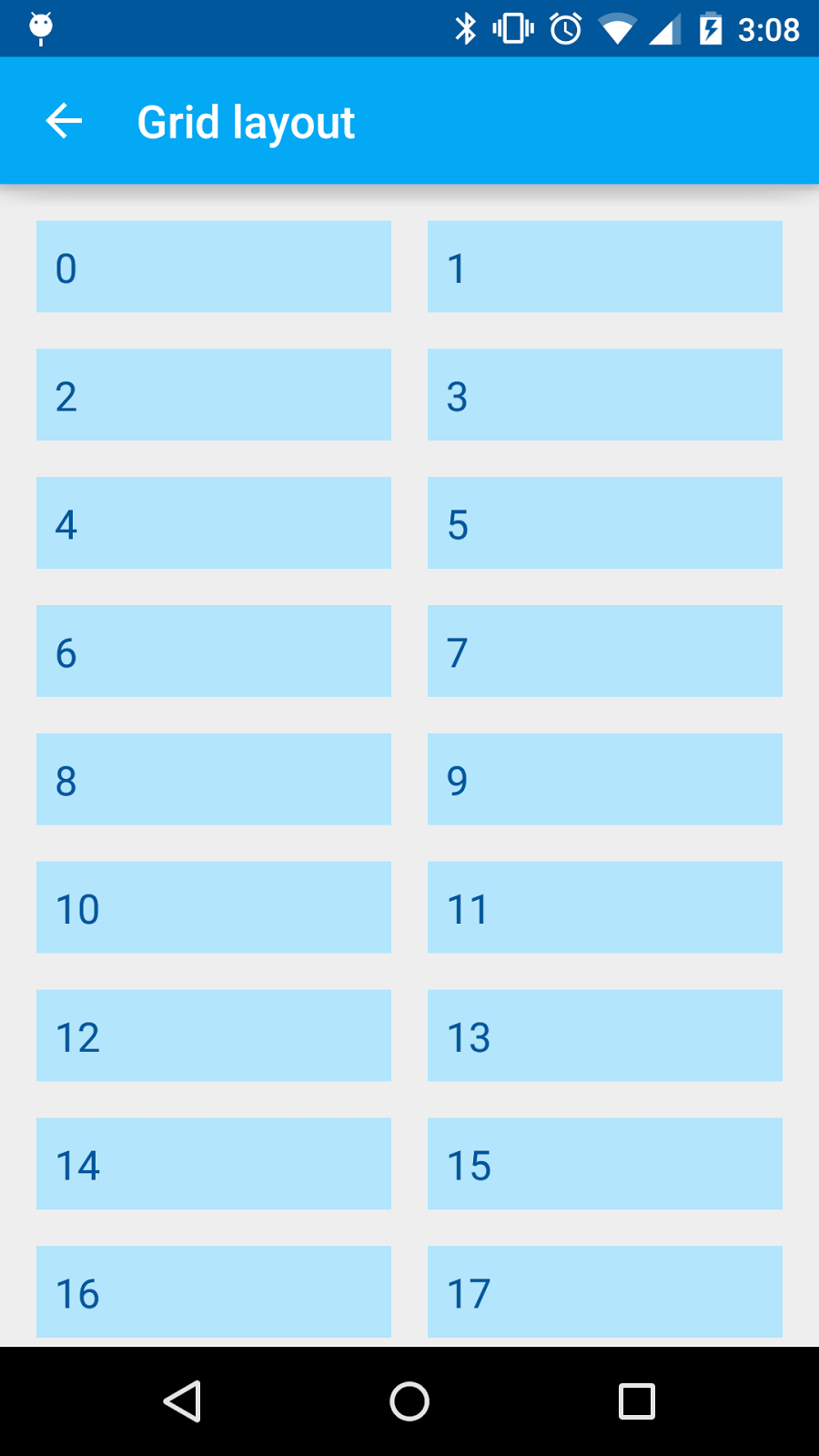
I created a RecylcerView using a GridLayoutManager with a spanCount of 2.

RecyclerView recyclerView = (RecyclerView) findViewById(
    R.id.recycler_view);
recyclerView.addItemDecoration(new MarginDecoration(this));
recyclerView.setHasFixedSize(true);
recyclerView.setLayoutManager(new GridLayoutManager(this, 2));
recyclerView.setAdapter(new NumberedAdapter(30));

NumberedAdapter shows the position of the item as string, and toasts when clicked.

Variable span size

In the basic setup I have a spanCount of 2, each item with a span size of 1. A header will need a span size of 2 instead. Before I try to add a header, I want to see how I can change the span size. Turns out to be fairly easy.

GridLayoutManager manager = new GridLayoutManager(this, 3);
manager.setSpanSizeLookup(new GridLayoutManager.SpanSizeLookup() {
  @Override
  public int getSpanSize(int position) {
    return (3 - position % 3);
  }
});
recyclerView.setLayoutManager(manager);

setSpanSizeLookup lets you change the span size according to the position. This formula gives me span sizes 3, 2, 1, 3, 2, 1...

Header

Now let's add a header! We will need an adapter that providers two view types, one the header and one for the items. Take a look at HeaderNumberedAdapter, which takes a View as the header in the constructor and stash it away in a member variable.

public boolean isHeader(int position) {
  return position == 0;
}

@Override
public TextViewHolder onCreateViewHolder(
    ViewGroup parent, int viewType) {
  if (viewType == ITEM_VIEW_TYPE_HEADER) {
    return new TextViewHolder(header);
  }
  View view = LayoutInflater.from(parent.getContext())
    .inflate(R.layout.item, parent, false);
  return new TextViewHolder(view);
}

@Override
public void onBindViewHolder(
    final TextViewHolder holder, final int position) {
  if (isHeader(position)) {
    return;
  }

  // Subtract 1 for header
  final String label = labels.get(position - 1);

  holder.textView.setText(label);
  holder.textView.setOnClickListener(new View.OnClickListener() {
    @Override
    public void onClick(View v) {
      Toast.makeText(holder.textView.getContext(), 
          label, Toast.LENGTH_SHORT).show();
    }
  });
}

@Override
public int getItemViewType(int position) {
  return isHeader(position) ? 
    ITEM_VIEW_TYPE_HEADER : ITEM_VIEW_TYPE_ITEM;
}

@Override
public int getItemCount() {
  return labels.size() + 1;
}

When the RecyclerView creates a view, if we are at the header position we wrap the stashed header with the view holder. On bind does not need to do anything for the header since the logic is done in the activity. However, we need to subtract the position by 1 when we bind the remaining items.

Back to the activity. We need to initialize the HeaderNumberedAdapter with a header, and also override the setSpanSizeLookup to have the header span all the columns.

final GridLayoutManager manager = new GridLayoutManager(this, 2);
recyclerView.setLayoutManager(manager);

View header = LayoutInflater.from(this).inflate(
    R.layout.header, recyclerView, false);
header.setOnClickListener(new View.OnClickListener() {
  @Override
  public void onClick(View v) {
    Toast.makeText(v.getContext(), R.string.grid_layout_header, 
        Toast.LENGTH_SHORT).show();
  }
});
final HeaderNumberedAdapter adapter 
    = new HeaderNumberedAdapter(header, 30);
recyclerView.setAdapter(adapter);

manager.setSpanSizeLookup(new GridLayoutManager.SpanSizeLookup() {
  @Override
  public int getSpanSize(int position) {
    return adapter.isHeader(position) ? manager.getSpanCount() : 1;
  }
});

We inflate the header, define its click behavior, and use it to construct the adapter. Then, in setSpanSizeLookup, we return the span count as the span size if we are at the header position.

Summary

To create a grid with header using RecyclerView:

  1. Define an adapter with two view types, one for the header and one of the items.
  2. Inflate a header and pass it to the adapter.
  3. Override setSpanSizeLookup in GridLayoutManager to return the span count as the span size for the header.

Source: https://github.com/chiuki/android-recyclerview

P.S.: I got a comment on my Google+ post that you can also copy HeaderGridView.java out of AOSP if you don't need other RecyclerView functionalities such as animation, reordering and staggering.